nizima LIVE 2.7 : Big Update!
Audio Tracking Feature, Time Parameter Feature, and more
Hello, this is the nizima LIVE team.
We have released nizima LIVE 2.7, a tracking app for VTubers!
nizima LIVE 2.7 – New Features
Audio Tracking Feature
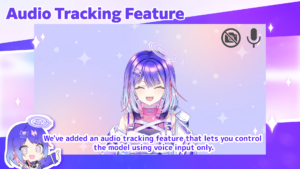
We’ve added an audio tracking feature that lets you control the model using voice input only.
Without camera tracking, the model can naturally blink, mouth-sync, and move its face up, down, left, and right, as well as move its entire body.
This is useful when you want to move the model without using live-action tracking, or when you do not have a camera ready.
How to Use
1. Open Camera Settings > Audio Tracking in the main menu.
2. Select the microphone you want to use.
Time Parameter Feature
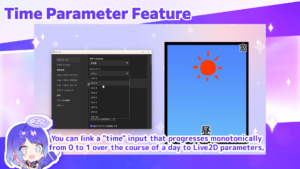
Time Parameter Feature Added!
You can link a “time” input that progresses monotonically from 0 to 1 over the course of a day to Live2D parameters, allowing you to create gimmicks and expressions that change in sync with the time of day.
For example, this makes it possible to create new expressions that are linked to real-world time, such as window items where the scenery changes throughout the day.
You can choose between 24-hour and 12-hour cycles for the parameter.
How to Use
1. Open Parameter Settings from the main menu.
2. Open the Auto Playback tab.
3. Click + next to Time (24-hour) or Time (12-hour), then select the Live2D parameter you want to change according to the time.
AI assistant feature (Available in Japanese only)
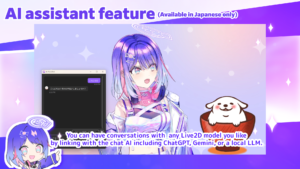
We’ve added AI assistant feature!
You can have conversations with any Live2D model you like by linking with the chat AI including ChatGPT, Gemini, or a local LLM.
For voice readout, you can choose from 82 voices across 31 VOICEVOX characters, including Zundamon and Shikoku Metan. Voice input is also supported, so you can interact by voice as well.
The lips and the model as a whole move in sync with the narration, and facial expressions change based on the emotion inferred from the conversation.
You can also output responses as subtitles to OBS, allowing the AI assistant’s dialogue to appear on your stream.
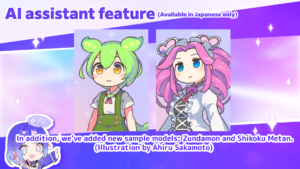
In addition, we’ve added new sample models: Zundamon and Shikoku Metan.
(Illustration by Ahiru Sakamoto)
You can use it both as an AI assistant and as a model you use yourself.
We plan to continue updating the AI assistant feature regularly. Please feel free to use it as a chat partner for casual streams, or as a character to liven up your broadcasts!
How to Use
1. Open Model List > AI Assistant tab in the main menu.
2. Select the Live2D model you want to set up as an AI assistant, then click Add.
3. For the first setup, you’ll need to configure your chat AI API key and download the voice model you want to use. Follow the on-screen instructions.
4. Once setup is complete, you can start interacting with the AI assistant.
*Notes
-You will need to prepare an API key for the chat AI you use, such as ChatGPT, Gemini, or a local LLM.
-Live2D model data is not sent to the chat AI and will not be used for training.
-Input information for interacting with the AI, such as chat content and character settings, will be sent to the connected AI service and handled according to that service’s terms and settings.
-The AI assistant feature is currently available in Japanese only.
-Please refer to the manual for details.
[macOS] Lip Sync Now Available for All Models
Lip sync is now available for all models on macOS! (Previously, this was supported only for Motion Sync-compatible models.)
As on Windows, you can move a Live2D model’s mouth based on voice input. This is useful in environments where the mouth area is covered by the microphone, or when the character looks down during drawing streams and similar scenarios, allowing the mouth to move naturally and cleanly.
How to Use
1. Open Camera Settings > Lip-sync in the main menu.
2. Select the microphone you want to use.
3. The mouth movement, mouth width, and other lip sync parameters will now move in response to your voice.
Mouse Click Assignment Now Available for Shortcuts
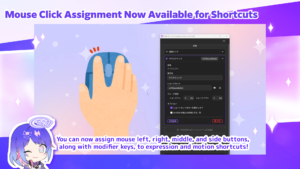
You can now assign mouse left, right, middle, and side buttons, along with modifier keys, to expression and motion shortcuts!
By setting shortcuts for motions that are built into the model, you can create a wide variety of expressions. For example, when drawing illustrations with a pen tablet, you can trigger expressions or motions with clicks to make it look like the character is actually drawing. In action games and FPS titles, you can also create actions such as raising a gun or shield, or swinging a weapon, in sync with mouse clicks.
How to Use
1. Open Expressions / Motions from the main menu, then expand the expression or motion you want to assign a shortcut to using ▼. You can also go to Options > Shortcut (Model) and select Expression or Motion.
2. Click the input field to focus it.
3. Press the mouse button you want to assign, such as left, right, middle, or a side button, and it will be recorded.
Google Account Login Now Supported
You can now log in with your Google account!
Logging in no longer requires entering your email address and password. You can now sign in easily with the Google account you normally use.
If you already have an account, you can link your Google account from Account Settings
(https://account.nizima.com/settings), and from the next time on, you’ll be able to log in simply by selecting Continue with Google.
In addition, we made the following updates:
-Added new effects: Mirror Ball, Comic, and Pixel Art
-Added a menu option to arrange the selected item to fit the screen’s height or width
-In Expression / Motion Editing, changed so that when overwriting, you can snap to key values by right-dragging
-In Parameter Settings, changed so that you can drag the input value preview to check values directly
-Reduced jitter when using a webcam near the face detection threshold
-Improved the performance of webcam tracking
-Other minor fixes
We will continue to update nizima LIVE to support your VTuber livestreams. Thank you.
▼Download/Update nizima LIVE (Windows/macOS)
https://nizimalive.com/en/download/
▼Download/Update nizima LIVE TRACKER(iOS)
https://apps.apple.com/us/app/nizima-live-tracker/id1563679978?mt=8
The nizima LIVE Official Discord Server is OPEN!We have opened the official Discord server for Nizima LIVE, where users can discuss, share their feedback, report bugs, ask questions, and more. We encourage you to join us!
▼Join the nizima LIVE Official Discord Server (free)
https://discord.live2d.app